

Skip Logic
Skip Logic is a great way to ensure that respondents see the question you want them to see. At the bottom of each question, click Add skip logic to configure. For example, imagine a study question “How easy is it to use the cut & paste feature in Google Docs?” with a response rating scale from 1 to 5. If the user answers with a 2, it won’t make sense to follow up with: “What do you like most about the cut & paste feature in Google Docs?” Instead, you might consider some routing logic only to show a “What can we do to make the feature easier?” question based on the response/response group.
If the SDK version(s) are insufficient, you will still be able to launch a survey, but respondents without the minimum SDK version on the target platform may not be presented with the survey, or they will receive a backwards compatible version of the study.
The logic statements that require the minimum SDK versions noted above are:
- Use of logic conditions with AND grouping
- Logic conditions contains and does not contain for Open Text Questions
- Logic conditions that depends on the answer from a previous question
Skip Logic in Surveys
Skip Logic in Surveys functions similarly to how it works in other survey types; however, there are some unique considerations when multiple questions are displayed on the same page. Here are the key points to keep in mind:- Single Skip Logic button per page: When multiple questions appear on the same page, only one Skip Logic button is available, below the last question. You can still use the responses from any question on that page in your logic.
- Skipping to any question or page: You can skip a respondent ahead to any page or specific question in the survey, even from a page containing multiple questions.
- Skipping to a question within a page: If a respondent is directed to any question other than the first on a page with multiple questions, the questions on that page before the one they’re directed to will be hidden from the respondent.
- Removing Questions: If you move the second-to-last question off a page that contains Skip Logic, the page will be removed from the survey, including the Skip Logic rules associated with it.
- Limitations of Skip Logic for Multiple Questions: Skip Logic cannot be used to redirect respondents from one question to another on the same page.
Display Logic
- Display Logic is available in Surveys, In-Product Surveys, and Feedback studies.
- Display Logic is only available on the Enterprise plan.
Configure Display Logic
- Navigate to a survey and locate the question you want to conditionally show. Click the Add Display Logic button at the top of the question builder.
- Set criteria based on prior responses in the survey or user attributes stored in Sprig.
- If adding Display Logic to the first question in a survey, only attributes can be used, as there are no prior responses to refer to.
Ensure Display Logic based on attributes will run
The attribute values specified in Display Logic criteria need to be added to Sprig before the survey is deployed or loaded for the user. If they are not, the respondent may not meet the criteria for the question, and thus the question may not display properly. If using attributes for Display Logic criteria, you must:- Track users for In-Product Surveys so that Sprig can look up each person’s attribute values when loading the survey for them. Learn more about tracking users.
- Distribute unique Survey links with user identifiers in them so that Sprig can identify who is taking the survey and look up each person’s attribute values when loading the survey for them. Learn more about including user identifiers in survey links.
Randomization
Released in October 2026 for link Surveys, In-Product Surveys and Feedback studies.
- Questions and blocks at the survey level: shuffle the order of selected questions and blocks.
- The contents of a block: shuffle the questions and nested blocks inside a block.
- A random subset of a block’s elements: show each respondent only a set number of randomly chosen elements from a block.
- Response options: shuffle the answer choices within a question.
Randomize questions and blocks in a survey
- There are two entry points for adding randomization across the whole survey:
- Select a few questions or blocks within the survey.
- Add a few questions to a survey. Once enough items have been added, a “Randomize” button will show in the toolbar above the questions.
- Click the Randomize button that shows in the toolbar above the questions.
You can only randomize items that are at the same level, for example all elements at the root level of a survey or all elements inside the same block. If your selection includes items at different levels, the Randomize option is disabled.
Pin an item
Pinned items stay in their built position while the items around them are shuffled.- To pin a randomized item, click its shuffle chip.
- To include a pinned item in the randomization again, click its pin chip.
Remove survey-level randomization
Click the Remove randomization button (shuffle icon) in the toolbar. All items will display in their built order.Randomize the contents of a block
Randomizing a block shuffles the order of its direct contents: the questions and nested blocks inside it.- Open the block’s More Actions menu (the three dots to the right of the name).
- Select Randomize > Randomize All.
- Nested blocks move as one unit. A nested block’s questions always stay together. Their order inside the nested block only changes if you also randomize the nested block.
- The block itself stays in place. Randomizing a block’s contents doesn’t move the block within the survey. To shuffle the block’s position, randomize it with other items at its level.
- Each block’s settings are separate. You can randomize a block and a block nested inside it. Removing randomization from one leaves the other unchanged.
- Empty blocks can’t be randomized. Randomize is disabled until the block contains at least one question.
Remove randomization from a block
Click the Remove randomization chip next to the block’s name. The block’s contents return to their built order. Settings on any nested blocks aren’t affected.Show a random subset of a block’s elements
Show each respondent only some of the questions in a block, chosen at random. For example, show each respondent 2 of 5 concept questions to keep the survey short while still collecting feedback on every concept.- Open the block’s More Actions menu.
- Select Randomize > Randomize Subset.
- In the Show a Random Subset dialog, set how many elements to show. The number of elements to be shown must be one less than the total number of elements in the blocks. Nested blocks count as one element.
- Click Randomize.
- The number to show must be at least 1 and less than the total number of randomized elements.
- The block needs at least two eligible elements for the option to be available.
- Pinned elements aren’t part of the subset. They’re always shown.
- Elements in a subset can’t be pinned individually.
- Questions in a subset can’t have display logic.
How subsets work with logic and other questions
Sprig makes sure respondents never see a broken flow:In your survey results, each response only includes the questions that each respondent saw.
How randomization works with logic
Randomization respects your survey’s logic:- Skip logic: a question never appears before the question that skips to it.
- Display logic: a question that depends on an earlier answer always appears after that question.
- Response Piping: a question never appears before the question that it gets the piped text from.
- Carry forward: a question that carries forward choices always appears after its source question.
- AI follow-ups: a follow-up is always shown immediately after its parent question.
Resumed responses and retakes
When respondents can resume a survey later, they see the same order and the same subset of questions when they return. Questions dropped from a subset don’t reappear.Copies and templates
Randomization settings are kept when you duplicate a study or create a template from it.Test randomization
The side preview in the editor shows questions in their built order. To check randomization, open the full-screen Preview and run through the questions a few times. Each preview will show a different order or subset.Old Randomization
This version of randomization was released in fall 2025 and is only available in Prototype Test studies.
Previous Randomization functionality
Previous Randomization functionality
Randomization allows you to randomize the order of response options in certain types of questions, questions within a page, and pages within a survey. Randomization helps prevent bias in results and provides a way for questions that come later in a survey to be seen by some respondents instead of being significantly affected by respondent drop-off.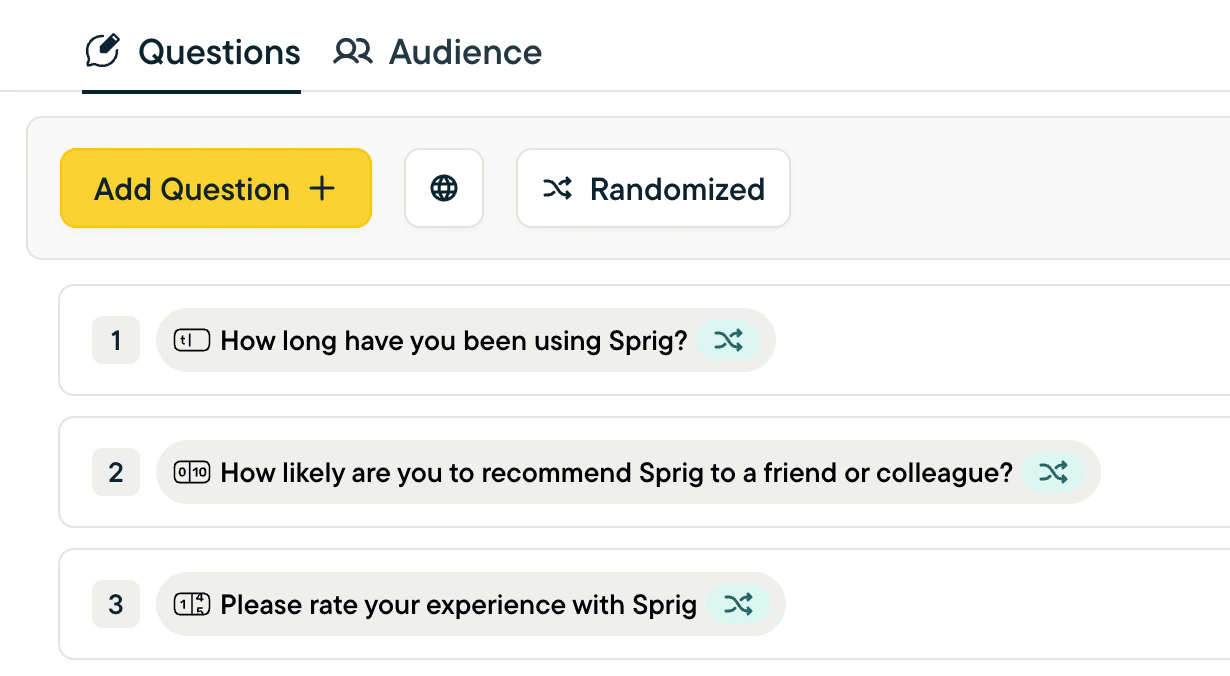
Randomize questions or pages within a survey
- Add a question to your survey
- Click the Randomize button in the Action Bar at the top of the Study Editor. This button won’t appear until there’s at least one question in the study.
- If you’re doing this in a Survey, you’ll have two options:
- Randomize all - randomize all of the pages within your survey and questions that appear together on the same page (questions on page 6 will be shuffled within page 6 but not moved to another page).
- Randomize pages only - randomize pages only; questions that are shown together on a page will stay in the order shown in the Study Editor.
- If you’re working on a Feedback or In-Product study, you won’t see any options. Randomization in these study types only randomizes all of the pages in the survey since questions in these surveys don’t appear together on the same page.
- If you’re doing this in a Survey, you’ll have two options:
- Once randomization is applied, a new button will appear to the right of each question or page title indicating that it has been randomized.
- To exclude a question or page from randomization, click the randomization button next to the page or question title. The button will change to a “pin” option.
- Pinning ensures that the question or page stays in the position you’ve placed it in, for example, if you pin question 3, it will always be the third question for respondents (unless Skip Logic impacts when it’s shown).
Things to keep in mind about survey-level Randomization
- If Skip Logic and Randomization are both applied to a question or page, Sprig will ensure that the destinations of Skip Logic don’t come before the questions that route to them. For example, if you randomize a 10-question survey, and question 1 has Skip Logic that points to question 5, question 5 won’t come before question 1 even if all the questions in the survey are set to randomize.
- Additionally, if Skip Logic uses a response from a question that came earlier in the survey as criteria, Sprig will ensure that the question comes before the Skip Logic that refers to it so that the response is available.
- Survey and page-level randomization will not affect the small preview panel that displays to the right of survey questions/responses when viewing a survey while signed into Sprig. To test randomization in a preview, use the full-screen preview.
Randomize the order of response options in questions
Randomizing the display of response options is available in Multiple Choice: Single-Select, Multiple Choice: Multi-Select, Rank Order, and Matrix questions.Displayed choices limit (Enterprise plan only)
When randomizing the choices in a Matrix or Multiple Choice: Multi-Select question, you’ll have the option to limit the number of choices displayed to each respondent. This can be useful when you have a long list of options and don’t want to overwhelm respondents with too many choices. Pinned options will always display. The question requires there to be at least 3 choices before this setting becomes available.When viewing survey data, in the CSV export and the Responses tab, you’ll be able to view which options were shown to each respondent, although not the order they were displayed.Response Piping
By allowing you to pull in a respondent’s previous answers to questions and descriptions, Response Piping makes it easy to personalize surveys and provide a more engaging experience.- Response Piping is available in Surveys, In-Product Surveys, and Feedback studies.
- Response Piping is only available on the Enterprise plan.
- Open Text
- Rating Scale
- Multiple Choice Single-Select
- Multiple Choice Multi-Select (the entire list of selections will be piped)
- NPS
- Matrix (the entire list of selections across rows and columns will be piped)
- Rank Order
- Legal/Consent
- Video/Voice
- Text/URL Prompt
- Recorded tasks
Attribute Piping
Use Attribute Piping to create a personalized survey-taking experience for respondents by having Sprig dynamically display a respondent’s unique attribute values as they are presented with questions. For example, if you store the names of the companies your respondents belong to in Sprig, you could ask a question like “How has your experience using the Barista Pro coffee maker at ACME Corp been?” instead of “How has your experience using the Barista Pro coffee maker at work been?”- Attribute Piping is available for Surveys, In-Product Surveys, and Feedback studies.
- Attribute Piping is only available on the Enterprise plan.
Important
In order for unique attribute values to be displayed for respondents:- The value of the attribute must be stored in Sprig ahead of the survey being displayed to respondents
- For In-Product Surveys, you must track users. Learn more.
- For Surveys, links with user identifiers need to be distributed (meaning there is one survey link per respondent). Learn more.
Add attributes to questions
Adding attributes to questions follows the same process as Response Piping: above the text field for the question or description, locate the piping button, click to open a menu to select the attribute you want to add, fill in a fallback value in case the data is missing for a respondent, and that’s it! Other things to know:- Attributes can be added to questions and descriptions.
- Attributes can be piped into the first question in a survey (unlike responses).
- The survey preview will show fallback text.
- In Slack notifications, individual responses on the Responses tab, and CSV exports, the exact text displayed to a respondent will be shown; in the Summary tab of a survey, the placeholder text, for example,
city, will be shown. - Attribute Piping can be used alongside Randomization.
Launch surveys that include Attribute Piping
No matter which type of survey or study you’re adding attributes to, the unique data for each respondent that you want displayed needs to be in Sprig before the survey is rendered/loaded for that user. You can add this data manually through CSV imports or on an ongoing basis with the SDK. If the attribute data is unavailable for any reason or doesn’t exist, the fallback text will be displayed. In-Product Surveys: In order to ensure surveys display attribute data, make sure values for those attributes are set for all respondents who will receive the survey, or use Targeting to specify the values/respondents who should receive the survey. Surveys: Since Surveys are delivered through links, in order for Sprig to know what values to show, it needs to know who is taking the survey. This can be accomplished by including a user identifier, such as the user’s ID, in the link to the survey. Learn more.Note: Attributes included in Attribute Piping are not available in CSV exports unless they were included in the Targeting criteria for the survey/study.