Sprig SDK Installation & Event/Attribute Instrumentation Required for TargetingIn-product Studies like Surveys, Feedback, Replays and Heatmaps require SDK installation and events to be instrumented to properly capture your user’s experience. Learn more about Installation, Events and Attributes
- Study Triggers
- User Filters (attributes, events, groups)
Overview
Targeting unlocks the full potential of Sprig by enabling you to reach the right users at the right time across Surveys, Feedback, Replays, and Heatmaps, using study trigger events and/or URLs, user filters, and other advanced filters.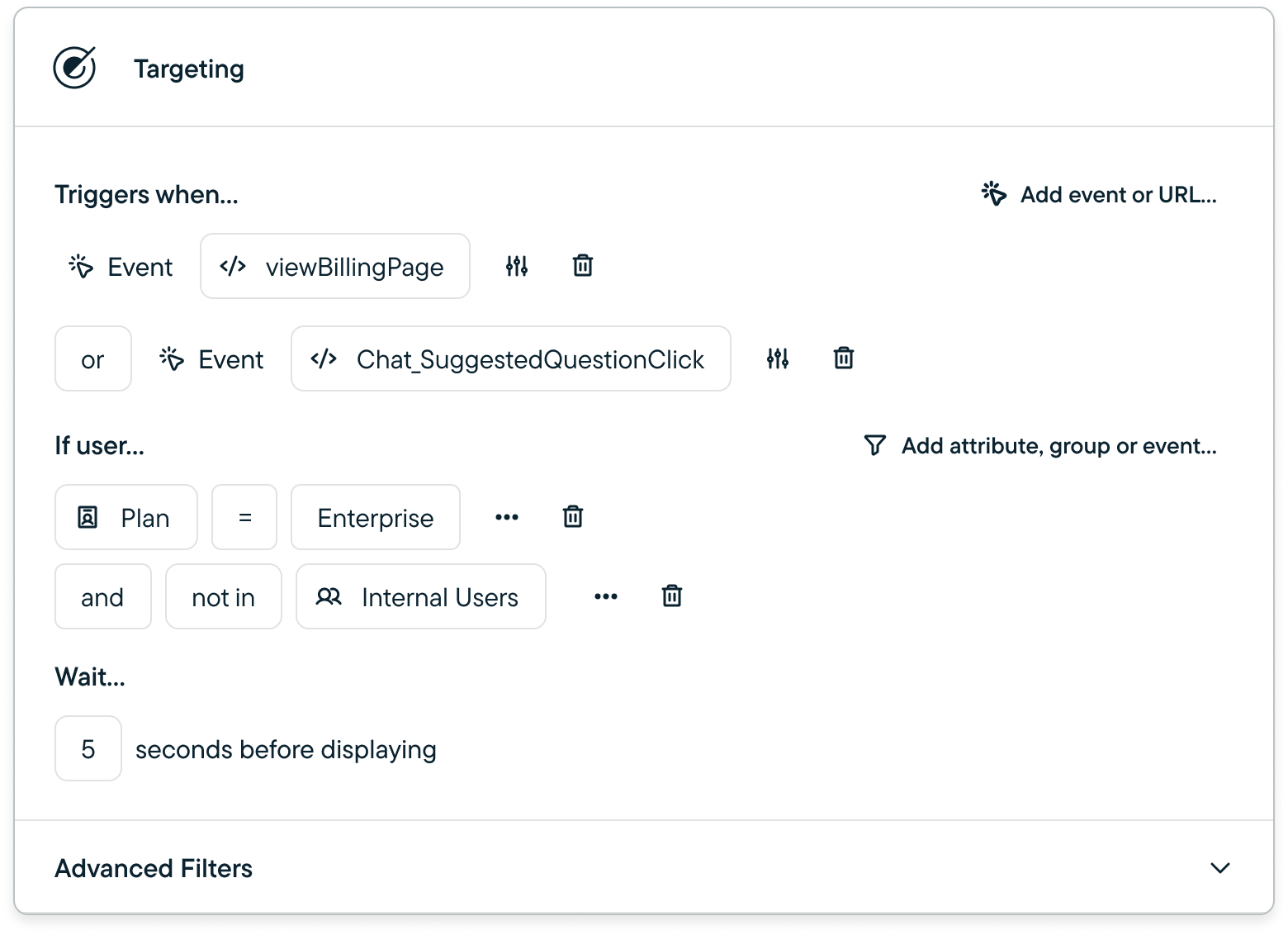
Study Triggers
Study triggers consist of events and/or URLs that initiate Surveys, Feedback, Replays, and Heatmaps, and are required for all in-product studies.Steps to add a Study Trigger:
- Configure your Survey (for Surveys & Feedback)
- Select a Platform
- Select Trigger Type:
- Click Add event or URL
- Heatmaps and Feedback are restricted to inline URL events only
- (optional) Add additional triggers - Sprig supports up to 10 triggers per in-product study.
- Click Add event or URL
- Configure Trigger: Event Properties (optional)
- Event properties allow you to more specifically target users, limited to Code events
- Note: You are limited to 10 event properties across all triggers in a study. For example, if your study has 2 triggers, you can have 5 event property filters per trigger.
Note: You can use the same event to trigger more than one Study, but if the same study type, your visitors will be evenly sampled to contribute to a study
Wait Time Filter - Surveys Only (Optional)
Wait times allow you to ensure that you are not interrupting key user flows. Adding a wait time will delay the survey from displaying for some number of seconds.Inline URL Event Triggers
Inline URL Event Triggers work the same under the hood as No Code Events, just with the ability to create a No Code Event directly inline from the Targeting card. As with all No Code Events, your SDK must first be installed on the same page that you are targeting with a URL.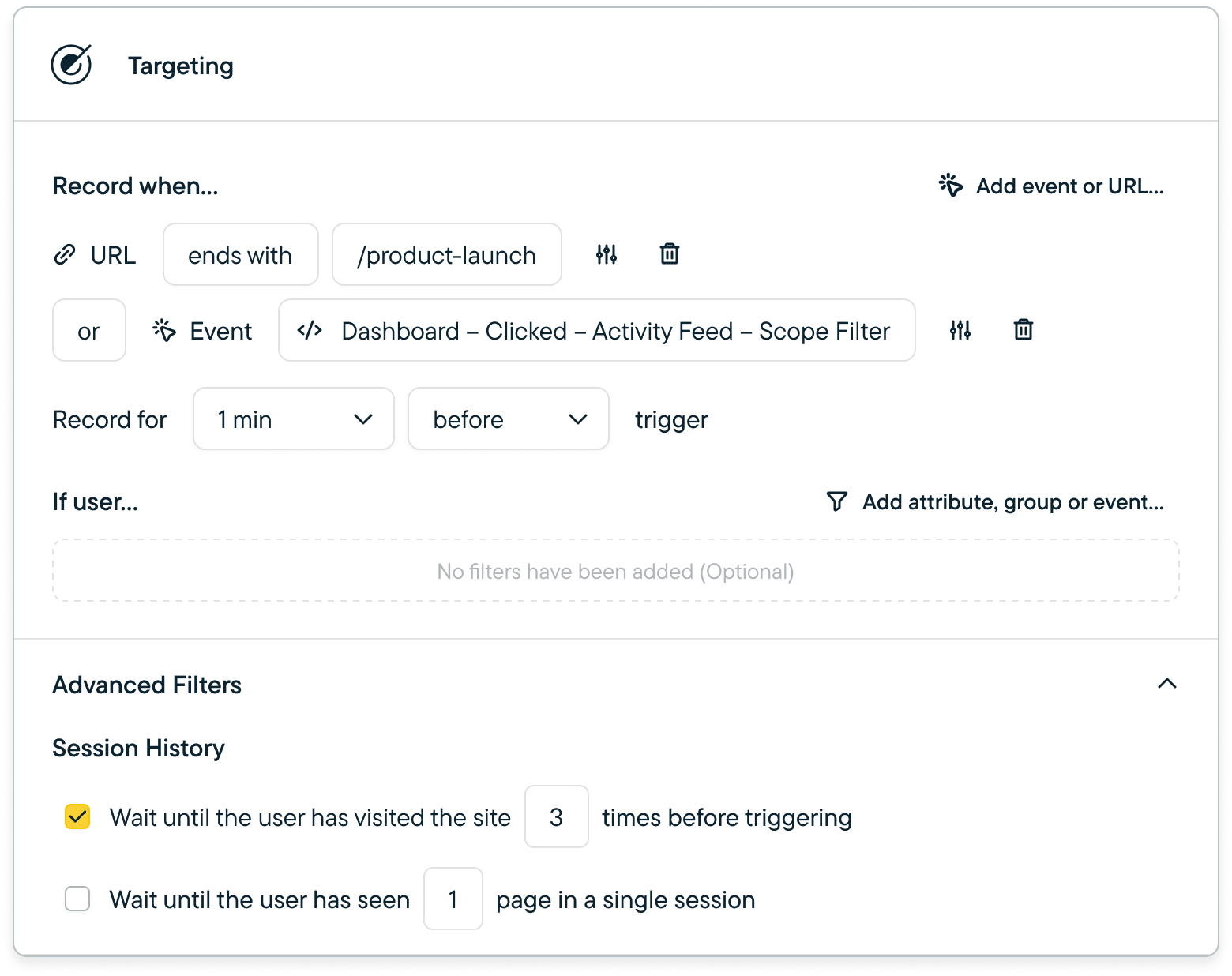
Advanced Session Filters
- Session History - # of visits before triggering
- Measured as 12-hour windows in which a visitor has one or more events tracked
- Page View History - # of web pages seen in a single session (Web studies only)
User Filters - Attributes, Group or Event History (Optional)
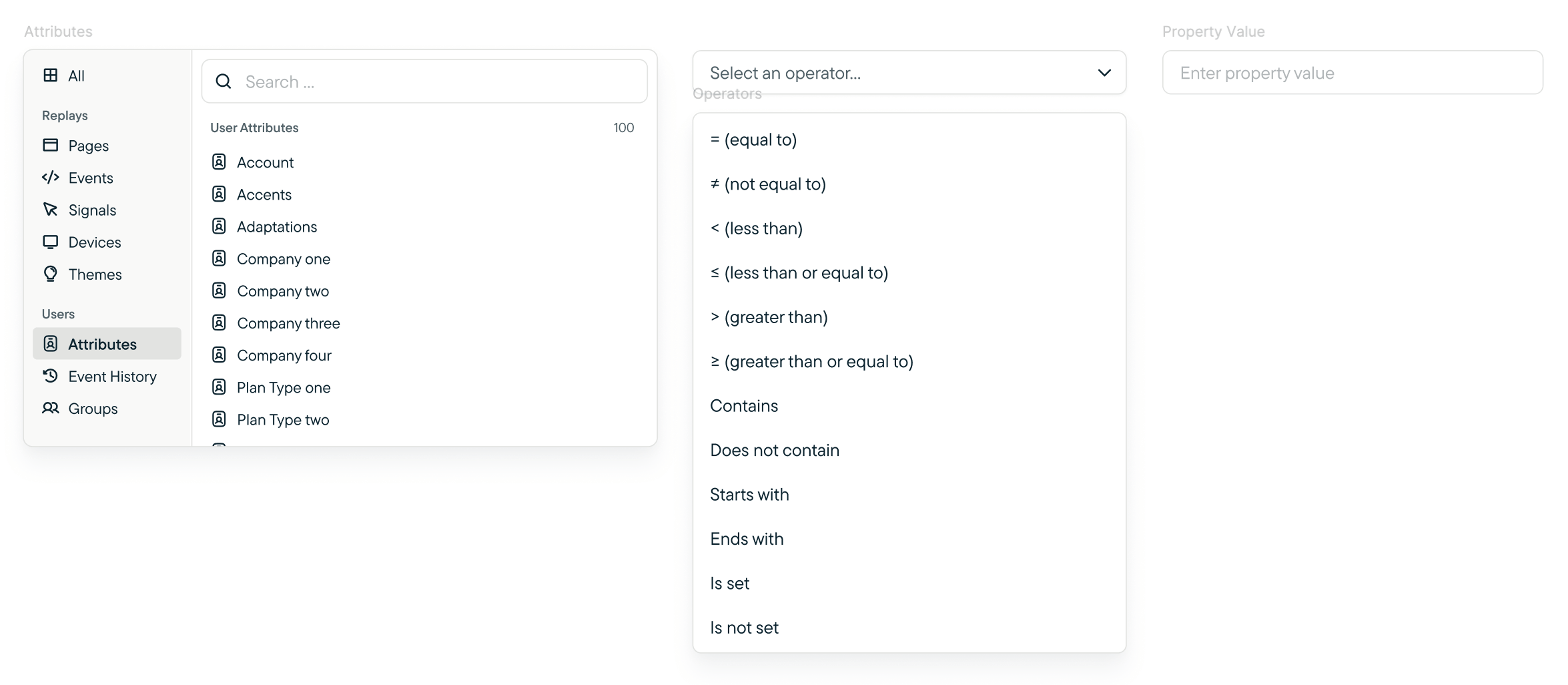
User filters allow you to target specific user segments based on their attributes or behaviors. This helps in personalizing the study to relevant user groups. There are several types of filters available:- Attributes: Enables filtering by properties of your users (e.g.
Plan = Enterprise) - Groups: Enables filtering by groups of users
- Event History: Enables filtering by previous interactions (e.g.
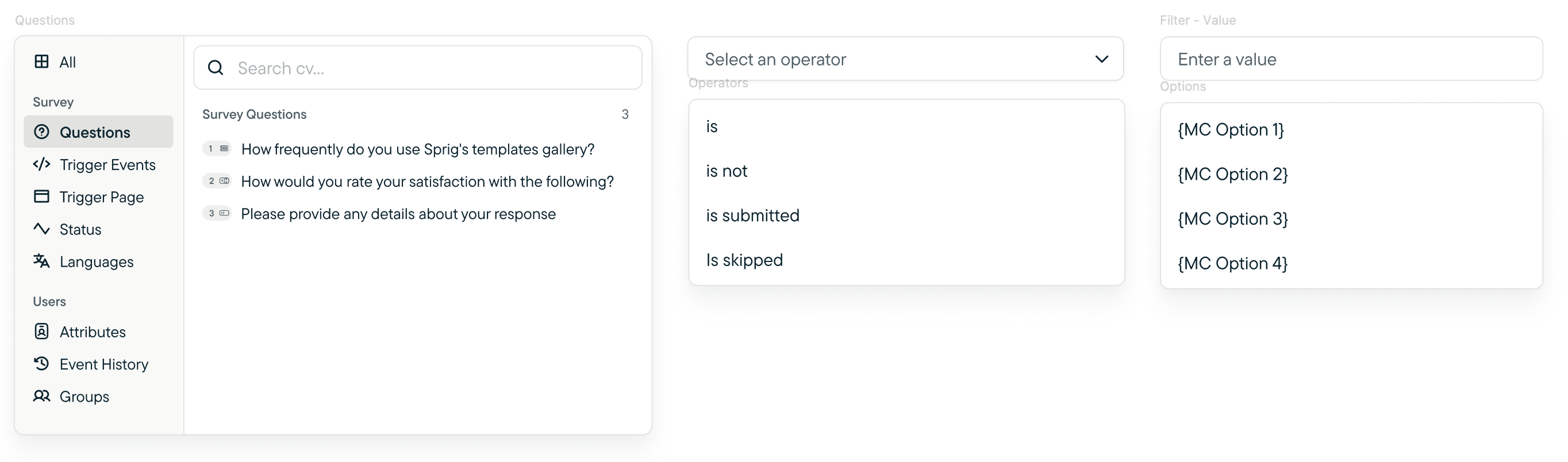
Dashboard - Sign Up Complete Last Occurred > 60 Days Ago) - Question Types & Logic Statements( e.g.
How would you rate your satisfaction with the following is 4) - No Code Event URLs
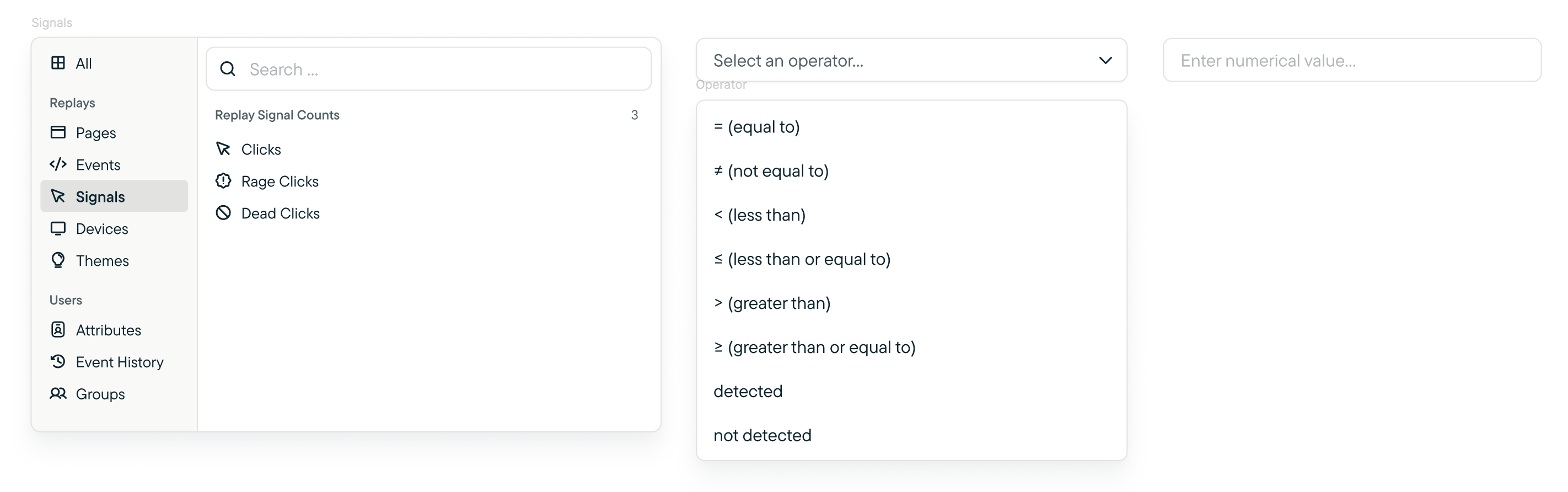
- Frustration Signals - Public Beta(e.g.
Rage Clicks = to 5)
Steps to Add a User Filter:
- Click the Filter button
- Select one of the available categories, depending on Survey Type, categories and options will vary - see options variables below:
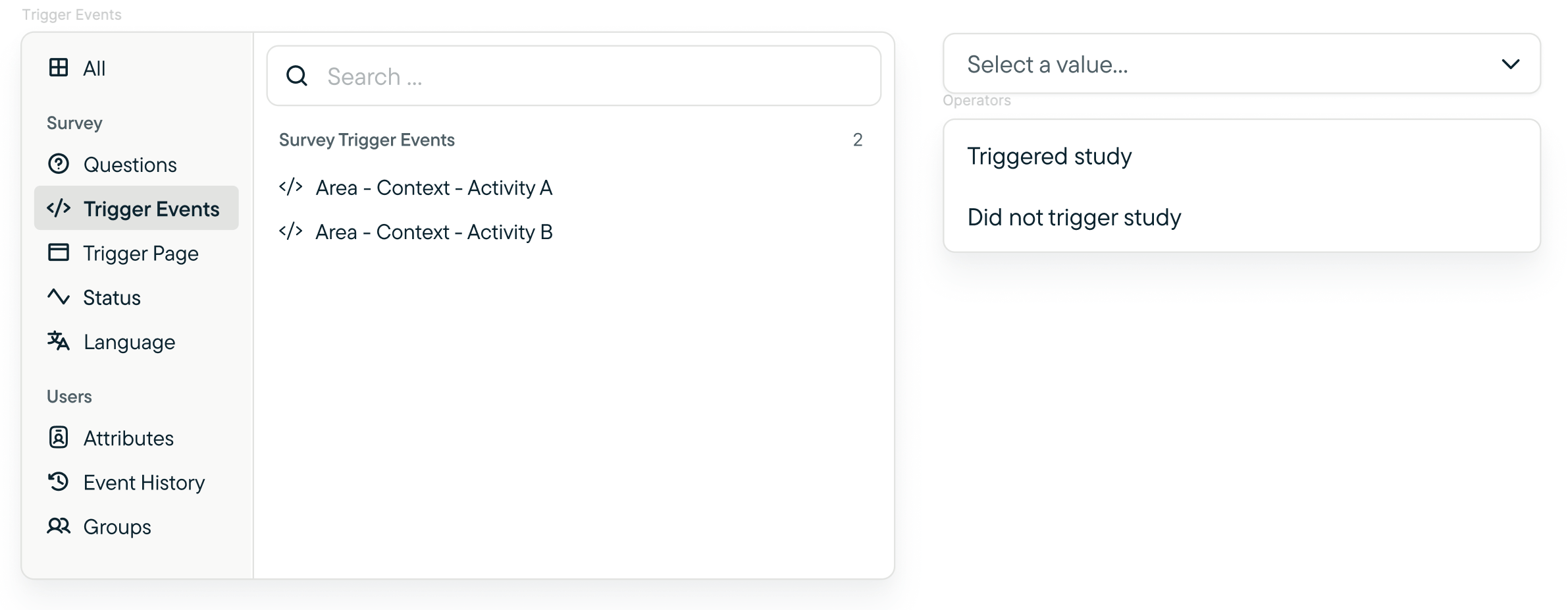
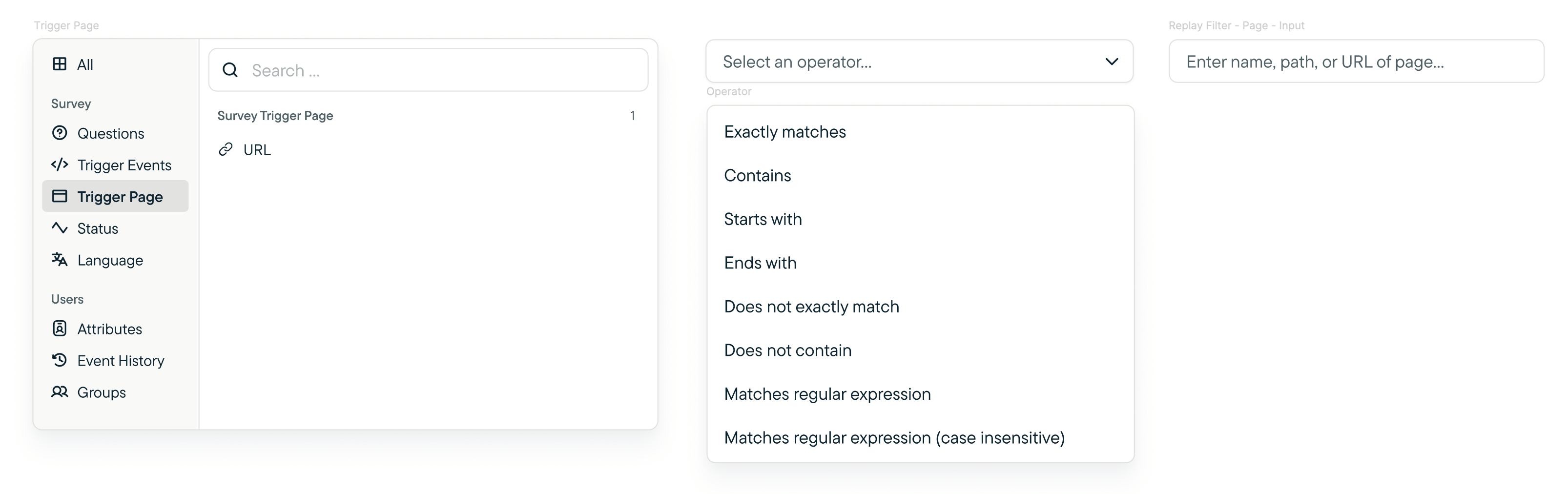
Survey Filters
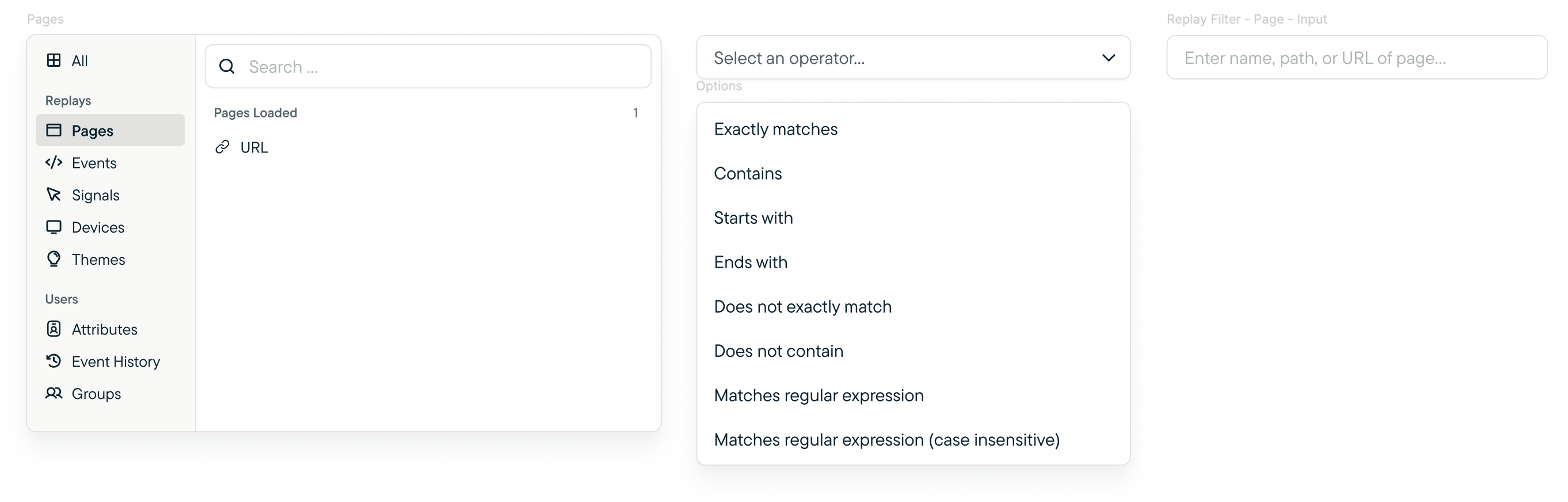
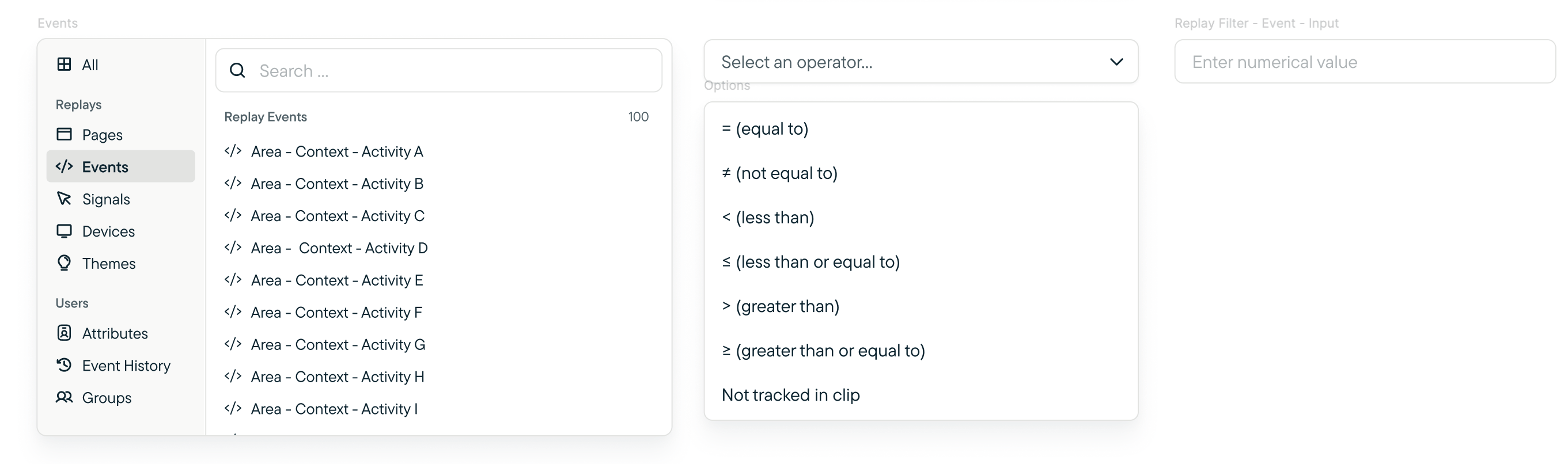
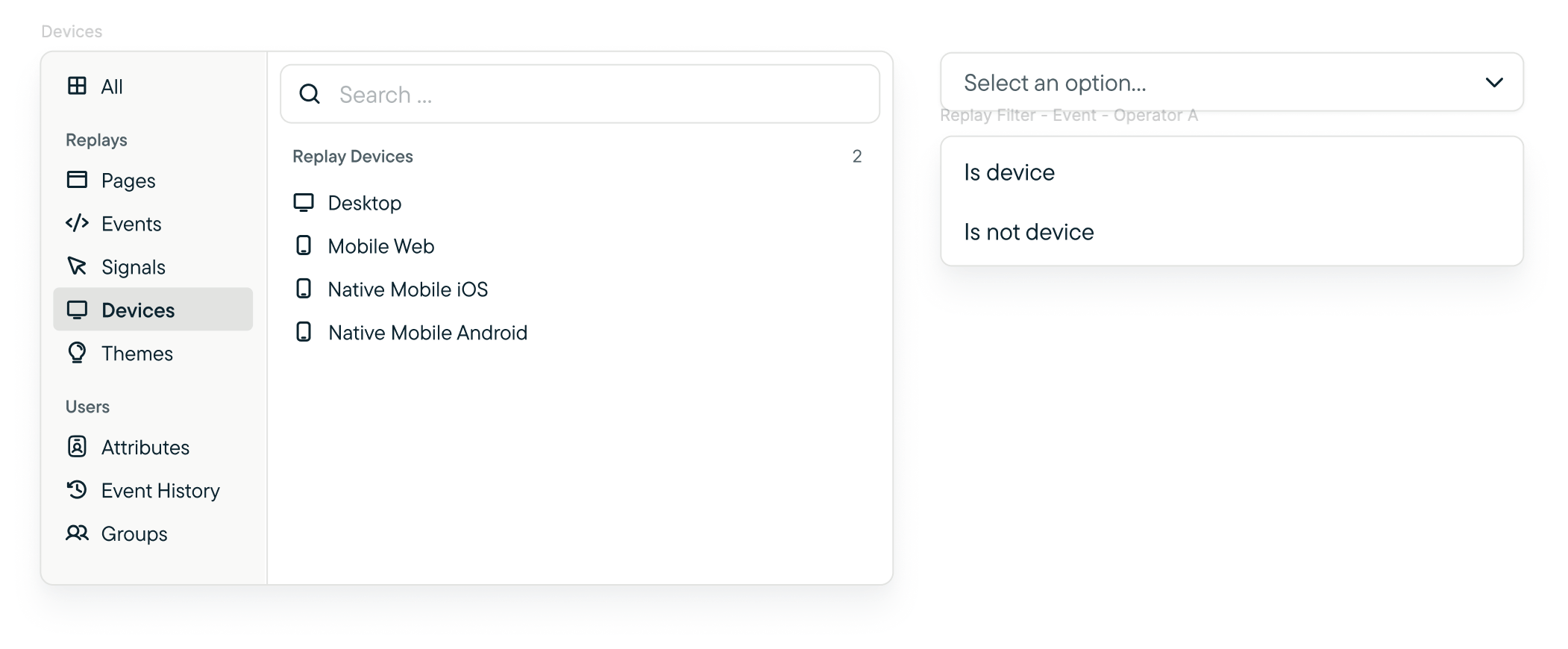
Replay Filters
User Filters