Overview
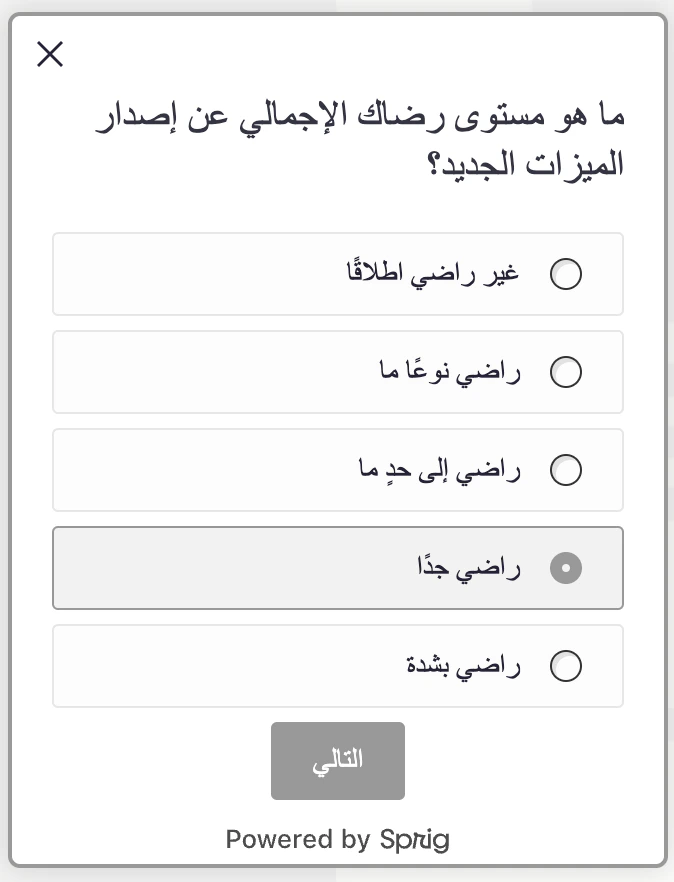
Sprig allows you to translate a survey into multiple languages that can be configured to selectively display to users on a localization attribute, event, or user group of your choosing. All languages, including right to left languages like Hebrew or Arabic are supported. Here’s an overview of the process:
Note: Multi Language Surveys are available for Web or Mobile In Product Surveys and Surveys. Feedback is not supported at the time.
Translating a Survey
- Create and configure a Survey in a default language - most users do so in English.
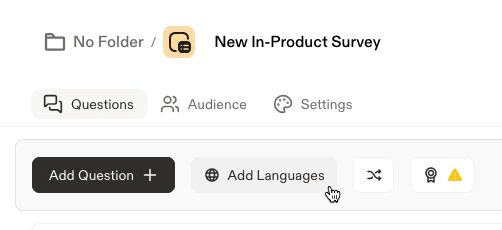
- Select Add language.
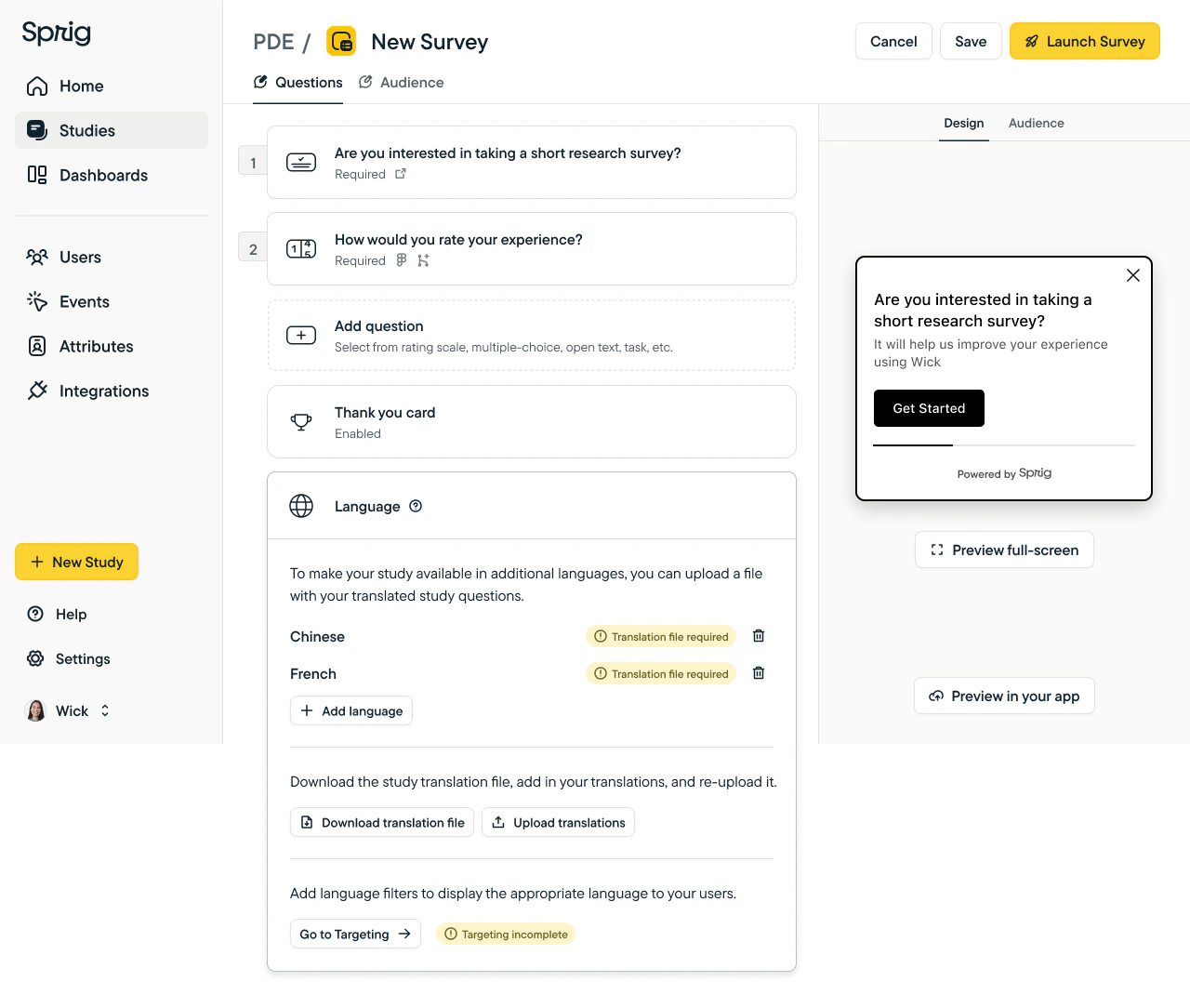
- In the Language card, add your language(s) from the dropdown menu.
- Download the translation file - translatable fields will be in rows, with the target languages across the top as columns.
- Translatable fields include questions, descriptions, choices, and button labels.
- Populate your translation file CSV with your translations.
- Be sure not to add or delete any rows or columns!
- Upload your CSV file by selecting Upload translations.
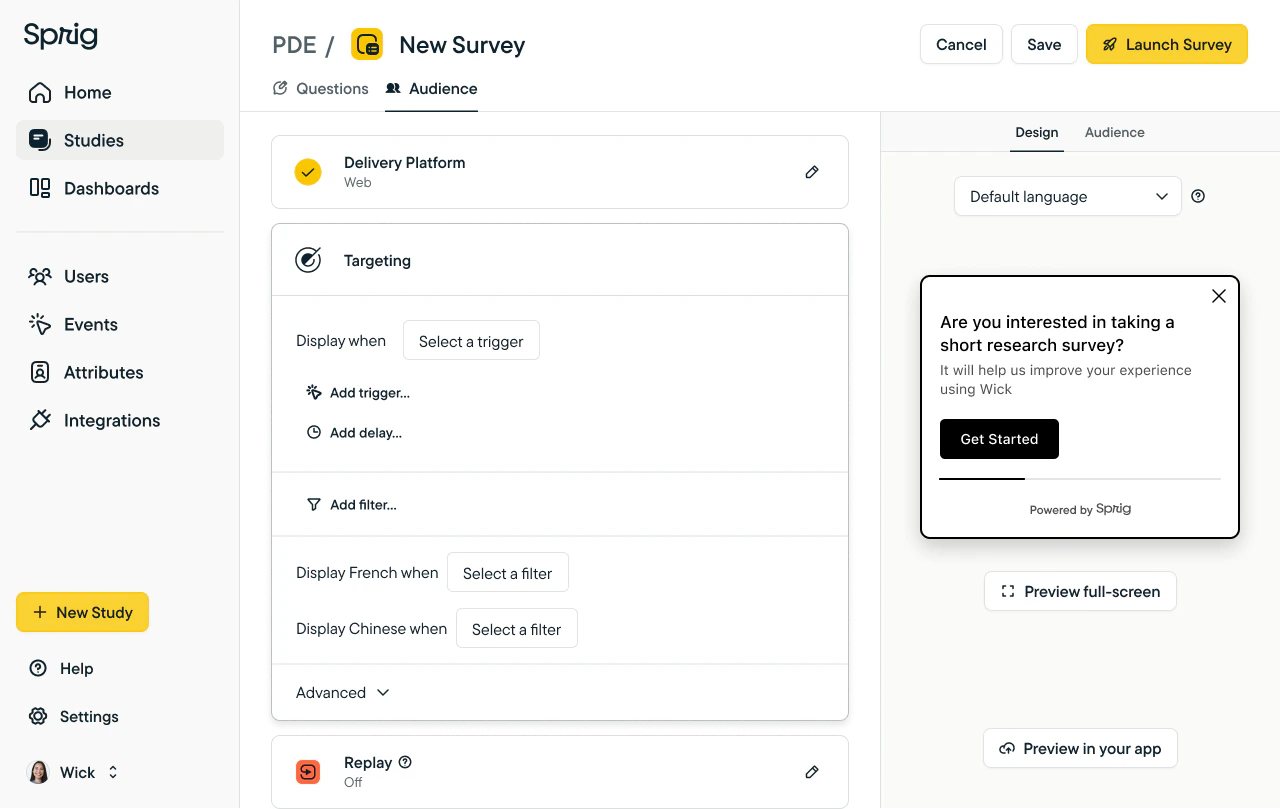
- Continue onto the Audience tab, where you can select your delivery platform and configure the study’s targeting.
- For each uploaded language, add a filter to ensure the right users receive a study in the right language.
- Configure Response Settings and Recontact Options
- Launch!
Auto Translated Survey Fields
For web and mobile surveys that are not manually translated, there are a few UI elements that are automatically translated based on the survey respondent’s browser locale language, in the case that a Sprig user does not choose to override the placeholder text:- “Next” and “Finish” CTAs
- Thank you card text (“Thanks for your input!”)
Analyzing Responses
All responses will be captured, in aggregate, for all language versions of the survey in the Results tab. To analyze results by language, we recommend using the same attribute filter used for language targeting.Open Text Themes
Sprig AI automatically translates open-text responses and outputs themes in English, but the individual responses will be displayed in the native language.Note: Filtering down results will not generate themes based on the subset of responses.
FAQ
What happens if there are no matching language filters?
A survey will not be displayed to a visitor if there are no matching language filters.How do I show the survey in the default language if there are no matching language filters?
Set the top-level filter to is set = Yes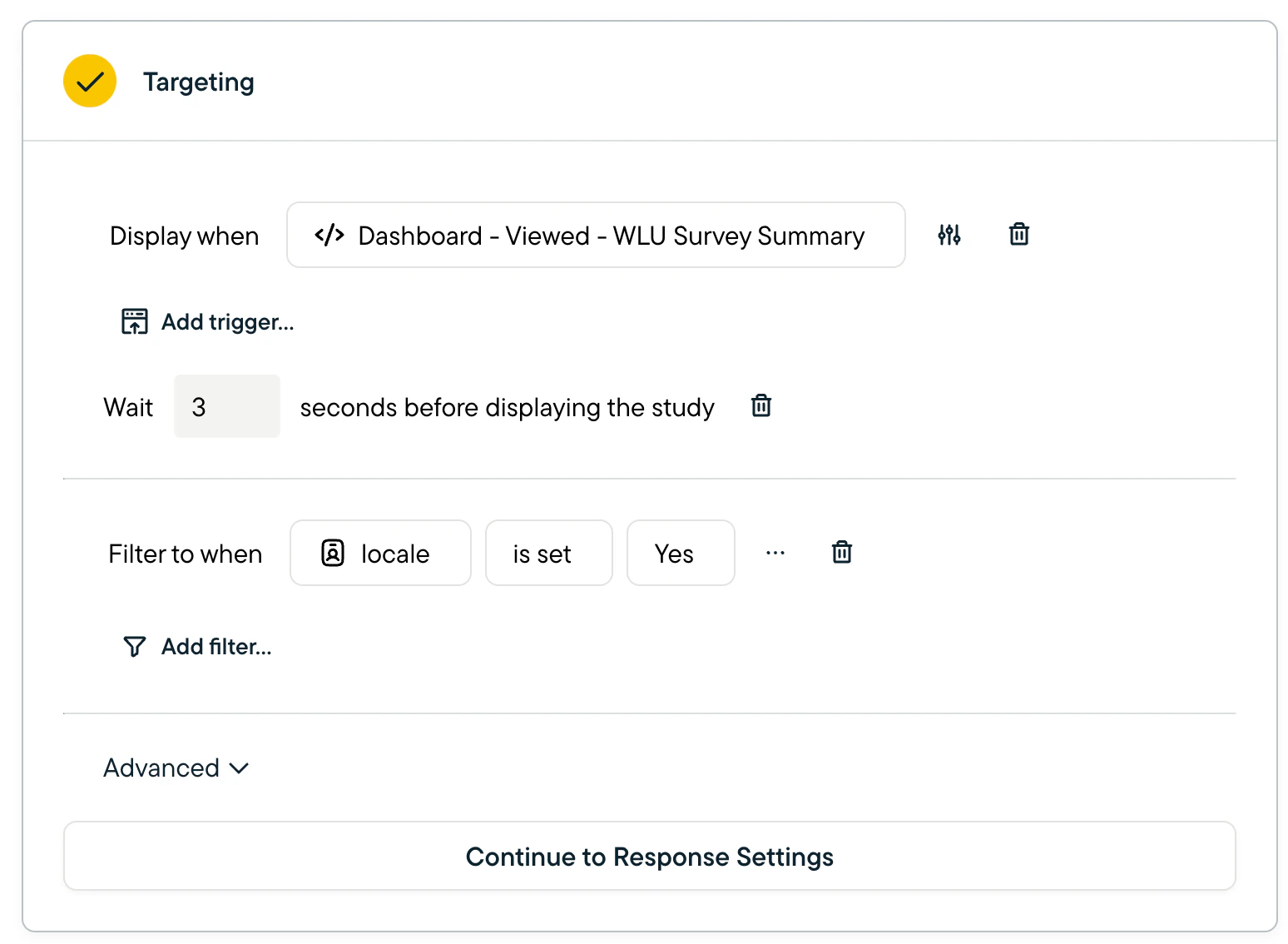
How do right-to-left language surveys work?
Sprig supports any right-to-left languages. Simply upload a translation as you would with any other language and observe the formatting in the Preview pane.If a survey taker matches your prescribed filtering criteria for a right-to-left language, our formatter will right-justify and flip the orientation of the UI elements for the best survey taker experience.