

Overview
Sprig Panels let you recruit verified, screened participants from a curated research panel and deliver your survey directly to them. This is useful when you want to:- Reach people outside your existing user base
- Test concepts or ideas with a fresh audience
- Understand brand perception from non-customers
- Avoid over-surveying your own users
Note: Sprig Panels is available to Enterprise plans on Surveys (link surveys) only. If your organization does not have Panels enabled, reach out to your dedicated Customer Success team or sales@sprig.com for more information on how to enable it.
Accessing Panels
Panels require credits, which are purchased annually through your Sprig Sales or Customer Success contact. Once you’ve purchased credits you’ll be able to access the Panels functionality inside Surveys. If you need more credits during the year you can always purchase more.Creating a Panel
Panels are created within a Survey (i.e. link survey, previously known as a Long-Form survey). You can add a panel to a new or existing survey.To create a panel:
1
Open the survey
Navigate to a new or existing Survey and click Edit.
2
Go to the Audience tab
Open the Audience tab.
3
Turn on Sprig Panel
Toggle Sprig Panel on. Note: Sprig Panel and Email distribution cannot both be active on the same survey at this time.
4
Open the Panels tab
A Panels tab will appear in the survey builder. Click Continue to Panels at the bottom of the Audience tab to open it.
5
Create the panel
Click Create New Panel and fill in the required fields.
6
Save or continue
Save as a draft and return later, or continue to configure recruitment criteria.
Note: Surveys with a panel must include a Consent / Legal question. Sprig won’t launch the survey without one, to ensure proper participant consent is in place before collecting responses. The question should always be marked Required.
Writing Your Consent Question
The Consent / Legal question should give participants enough information to decide whether to take part. It should be the first question in the survey and always be marked Required.What your consent copy should include
What your consent copy should include
Your consent copy should tell participants:
- What data you’re collecting. Call out any sensitive personal data by name, such as health information, racial or ethnic origin, or religious or political beliefs.
- What you’ll use the data for.
- Where the data is stored and how long you’ll keep it.
- How you’ll keep their identity anonymous or their answers confidential.
- Whether anonymized data might be shared with other researchers or published later.
- How they can withdraw consent and ask for their data to be deleted.
- The legal basis or framework (for example, GDPR) that governs how the data is processed and stored.
Asking for consent
After the information above, ask participants to confirm that they have read and understood it and that they agree to take part. Participants give consent by selecting the checkbox and submitting the question.If a participant doesn’t consent
Participants who don’t consent shouldn’t see the rest of the survey. When the Consent / Legal question is marked Required, participants can’t continue without agreeing to it.Required Panel Information
When creating a panel, you’ll provide:- Panel Name (Public): visible to participants, so make it clear and descriptive.
- Panel Description (Public): shown to participants before they decide to take part. This description can be up to 5,000 characters.
- Number of participants: the total number of completed responses you need.
- Survey length: your estimated completion time in minutes. This helps participants decide if they want to participate and is used in cost calculations for incentives.
- Cost per completed Survey: Sprig calculates this for you based on your number of participants and survey length.
- Screen-out slots: the number of participants who can be screened out by your quotas. This is only required if the survey has quotas enabled when it’s launched. See Adding Quotas and Screener Questions.
Defining Recruitment Criteria
After filling in the basic panel info, you can define who you want to recruit by adding criteria. There are over 300 available filters, and many categories including:- Location
- Gender
- Age
- Employment Status
- Industry
- Job Title
- Company Size
- Household Income
- Education
Adding Quotas and Screener Questions
If you need more precise targeting than the filters provide, you can add screener questions directly in the survey by using Sprig’s built-in quota criteria. Screener questions act as in-survey filters, and participants who don’t qualify are “screened out” and not shown the full survey. When using screeners:- Always set your panel recruitment criteria first. Criteria determine who sees the study; screeners further qualify within that pool.
- Screener questions in the survey will not limit who the survey is shown to. Only recruitment criteria limits who can see a survey in order to decide to take it.
- Set Screen-out slots to define how many screened-out participants are allowed. This field CAN be increased after the panel and survey are launched. If you end up not having many people screen out you will get the credits back after the panel completes or is canceled and its last responses are settled, up to about 5 days after the last response.
- Make sure your quotas don’t conflict with the panel filter criteria you’ve already set.
- Place screener questions directly after the Consent / Legal question.
- Screened-out participants receive a nominal payment, not the full incentive.
Excluding Participants
Recruitment criteria can only include people. To exclude a group, use a quota. For example, to keep doctors out of a survey, add the screener question “Are you a doctor?” and set the quota so only participants who answer No continue.Choosing a Number of Screen-out Slots
How many screen-out slots you need depends on how much of your recruited audience you expect to match your quotas. Screen-out slots are inexpensive, so if you’re not sure, start with a high number, such as the same as your number of participants (or half that for a large panel). Monitor the panel after launch and increase the slots if needed. Credits for unused slots are returned after the panel completes or is canceled and its last responses are settled, up to about 5 days after the last response.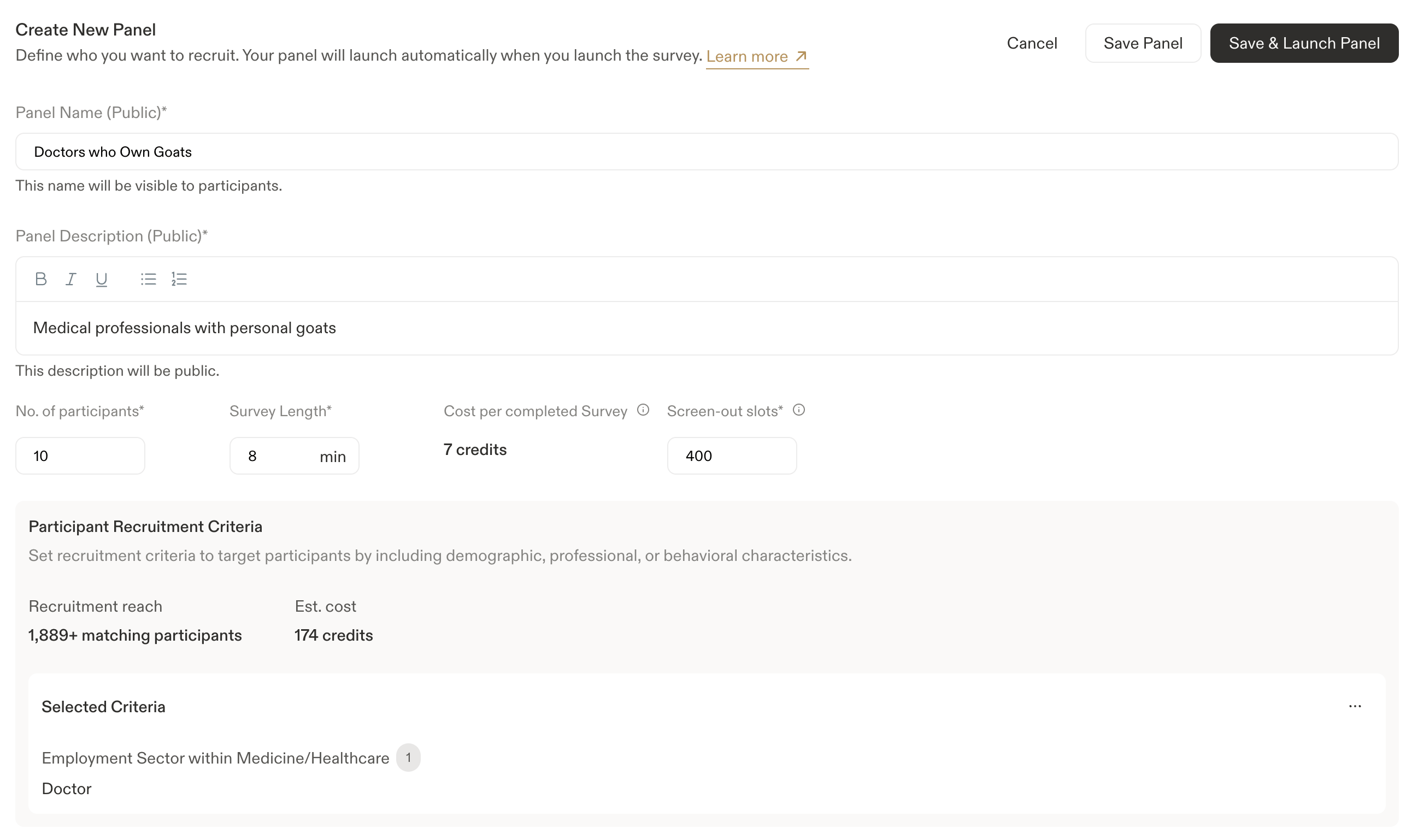
Setting Up Your Survey for a Panel
Response Settings
In the survey’s Audience tab, set the Response Settings to Ongoing. The panel stops recruiting once it reaches its number of participants, and the survey completes on its own when its last panel finishes. Screened-out and incomplete responses count towards the survey’s total responses but not towards the panel’s number of participants. When Sprig Panel is turned on, the Retake survey settings are set to One response per respondent and can’t be changed. Each panel participant can only submit one response.Question Order
We recommend ordering panel survey questions as follows:
- Consent / Legal question (marked Required)
- Screener questions used by your quotas
- Your main survey questions
- Demographic questions, if you need them
Collecting Demographic Data
Panel recruitment criteria aren’t saved with responses. To include demographic data in your analysis, add demographic questions to the end of the survey. These don’t need to be screener questions, since participants already matched the recruitment criteria before starting the survey.Participant Privacy
Don’t ask panel participants for personally identifiable information such as names, email addresses, or phone numbers. Contacting participants outside of the panel, or asking for a way to do so, is against the panel’s terms of participation.Launching a Panel
1
Save the panel
Save your panel configuration.
2
Test the survey
Preview and test the survey as you normally would.
3
Launch the survey
Launch the survey. Any draft panels launch automatically at the same time.
- You can increase the number of participants or screen-out slots while the panel is running.
- You can add new panels to a live survey at any time.
- You can pause and resume a panel. Panels also pause automatically if the survey is paused.
- You can cancel a panel at any time if you no longer need it to continue.
- No other edits can be made to a panel after launch. Plan your criteria and configuration carefully before going live.
Note: Insufficient credits: If your team doesn’t have enough credits to launch a panel, the survey will still launch but the panel will not. A warning will appear in the UI with a prompt to contact Sales.
How Participants Experience the Survey
Once launched, your study becomes available to participants who match your recruitment criteria. Participants see the panel name, description, estimated length, and compensation before deciding to take part. When a participant chooses to take the survey, it opens in a new tab. After completing it, they’re automatically redirected back and their completion is recorded in Sprig, no manual code entry required. Sprig tracks participant IDs to ensure no one is invited to the same study more than once, even across multiple panels on the same survey.Reviewing Responses
Responses appear in your survey dashboard as they come in, just like any other survey type.Response Statuses
Each completed panel response on the Responses tab shows the panel name and one of the following statuses:
A response can also show Excluded from analysis alongside its status. This is a user defined setting that hides the response from the Data tab, analysis, and the study report. The response stays on the Responses tab, and its payment status doesn’t change.
Approving, Rejecting, and Excluding Responses
Participants are paid automatically 120 hours (5 days) after their response comes in. Review and reject any responses within that time.
- Approve a response: simply by doing nothing.
- Reject a response: if the participant demonstrably did not complete the survey in good faith, select Reject Response, choose a reason, and write a message of at least 100 characters. Rejection prevents payment to the participant, and the participant is notified. Rejection is only available while the response is Payment pending. If you reject a response by accident, select Reverse Rejection. The participant will then be paid once the 5-day window closes.
- Rejection is a serious action. Only use it when a respondent has clearly violated the terms of participation. There is a limit to how many responses you can reject per panel.
- Exclude a response from analysis: If you want to remove a response from your analysis without rejecting it, select Exclude from analysis instead. The participant will still be paid, and the response stays on the Responses tab, but it won’t appear in the Data tab, analysis, or the study report. Select Include in analysis to undo this.
Note: Panel responses cannot be deleted.
Tracking Panel Progress
Monitor panel performance from the Response tab of your survey. In the top section you’ll progress against your target number of participants and the number of participants screened-out if the survey includes quotas.Panel States
Monitoring Credit Usage
Your organization’s overall panel credit balance and usage can be found in Settings > Organization > Usage. The panel section shows:- Total credits purchased for the year
- Credits used to date
- Estimated credits reserved for open (in-progress) panels