

Quotas are only available for customers on the Enterprise plan.
Overview
Surveys support response-based quotas. As respondents submit their responses to specified questions Sprig evaluates if the responses match the criteria for any quotas set up in the Survey. If the quota has not yet collected its target number of responses, and the respondent’s answers align with the criteria, they will be allowed to move forward and complete the Survey. If their answers don’t match any quota criteria, after the screener questions are complete the Survey will end for the respondent.Set Up Response-based Quotas
- Navigate to an existing or new Survey.
- It is possible to add a quota to an In-Progress Survey, more information on that below.
- Click Edit to access the Audience settings for the Survey.
- Scroll down to the Response Settings section.
- Select how the Survey should run.
- Until a specific number of responses are collected.
- Until a specific date.
- Ongoing.
- Use the toggle to enable quotas.
- Depending on how the survey is set to run, how quotas interact with that setting is slightly different:
- Specific number - the total of the quota targets will take precedence over anything in this field.
- Specific date - if quotas are still open when the specified date arrives, the survey will still move to Completed status; the date takes precedence.
- Ongoing - once all quotas are filled, the survey will change to “Completed.”
- Depending on how the survey is set to run, how quotas interact with that setting is slightly different:
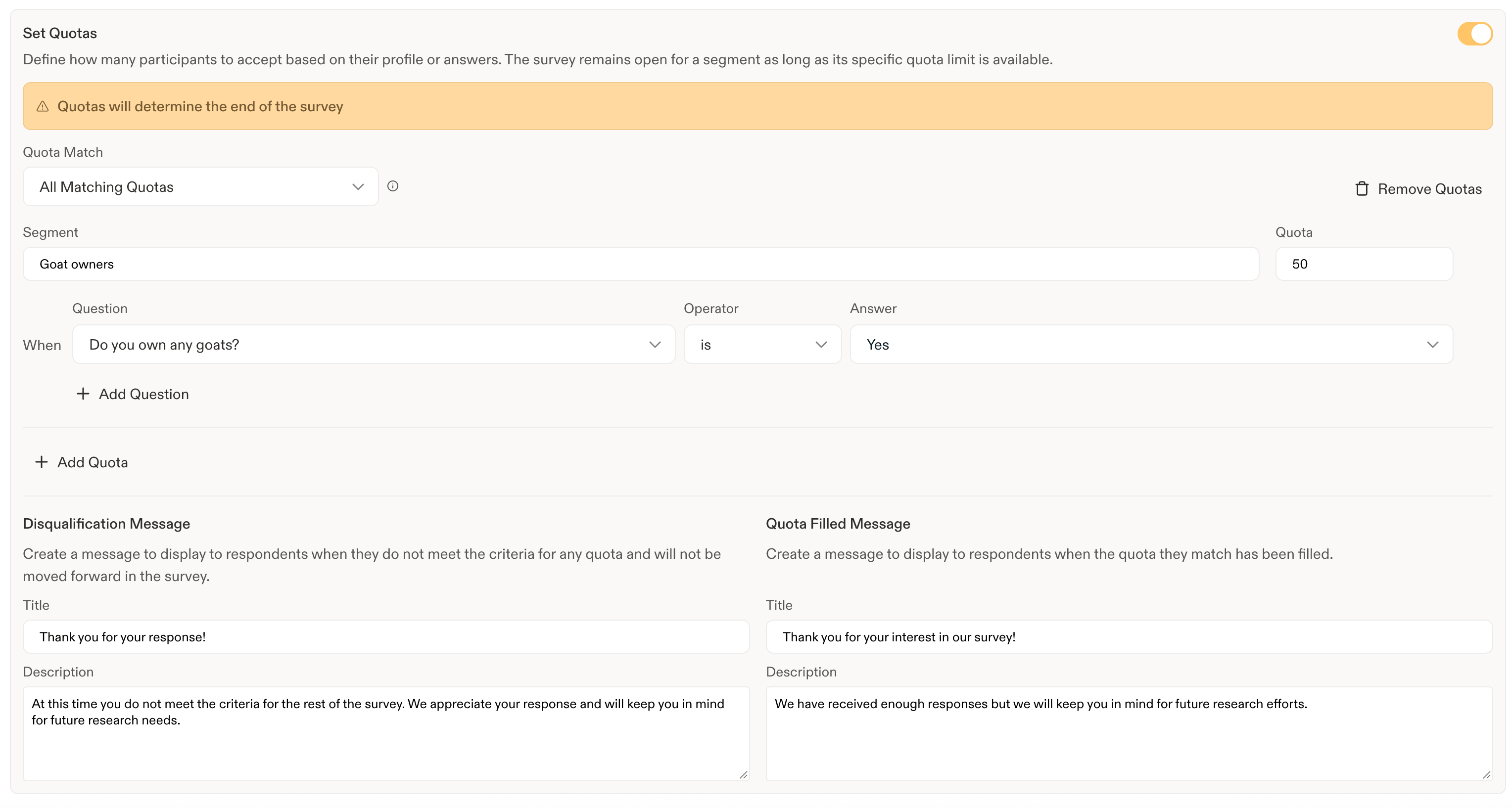
- Set how responses should be assigned to quotas using the Quotas Match setting.
- This is for when a respondent’s answers allow them to fit the criteria for multiple quotas.
- All Matching Quotas - every quota will be incremented.
- Least Filled - quota that is least filled will be incremented.
- Priority Order - quotas will be filled in the order they are listed in this section.
- Name the quota using the Segment field, for example “Millennial Vegan Coffee Drinkers.”
- This will be used to display responses and to filter responses on the Data and Responses tabs of the Survey.
- Set the responses that should be used to determine if a respondent matches the quota, for example:
- Do you drink coffee? > Yes.
- What diet do you follow? > Vegan.
- What is your age group? > 30 - 40.
- Add additional quotas as necessary.
- Set the message to display when the quota a respondent matches is full.
- This will show instead of the typical Thank You language added in the Study Builder.
- Set the message to display if a respondent’s answers result in them not matching any quota.
- This will show instead of the typical Thank You language added in the Study Builder.
- Continue building the Survey as normal.
Manage Quotas for Active Surveys
It is possible to work with quotas after a Survey has been launched with a few specific limitations:- The questions, response values, and operators defined in a quota can’t be changed, i.e. you cannot change the option of “Yes” in a Single Select to “Meh”.
- Questions and responses that are used in a quota can’t be changed in the Survey Builder
- Quotas can be added to an active Survey.
- Quotas CANNOT be deleted from an active Survey.
- The target (value) for a quota can be increased or decreased.
- i.e. The quota target for Vegan coffee drinkers can be increased from 100 to 150.
- If a target is decreased below the number of responses in the quota, the quota will be considered filled. The existing responses will remain in the quota.
Screener Questions
The following question types can be used as screeners for quotas:- Multi-Choice: Single Select
- Rating Scale
- NPS
Respondent Experience
If a quota is still open, and the respondent’s answers match the criteria, the respondent will move forward in the Survey. Their response will only increment the quota count if they reach the end of the Survey. They will see the normal Thank You screen at the end of the Survey. If a respondent’s answers do not match any quota after they complete all the screener questions, the Survey will end for them. They will see the Disqualification Message. If a respondent’s answers matched a filled quota and the Survey was still open due to other quotas not being filled, they will see the Quota Filled Message. If all the quotas are filled, the Survey will show the “Survey closed” screen for them since its state will be “Completed.”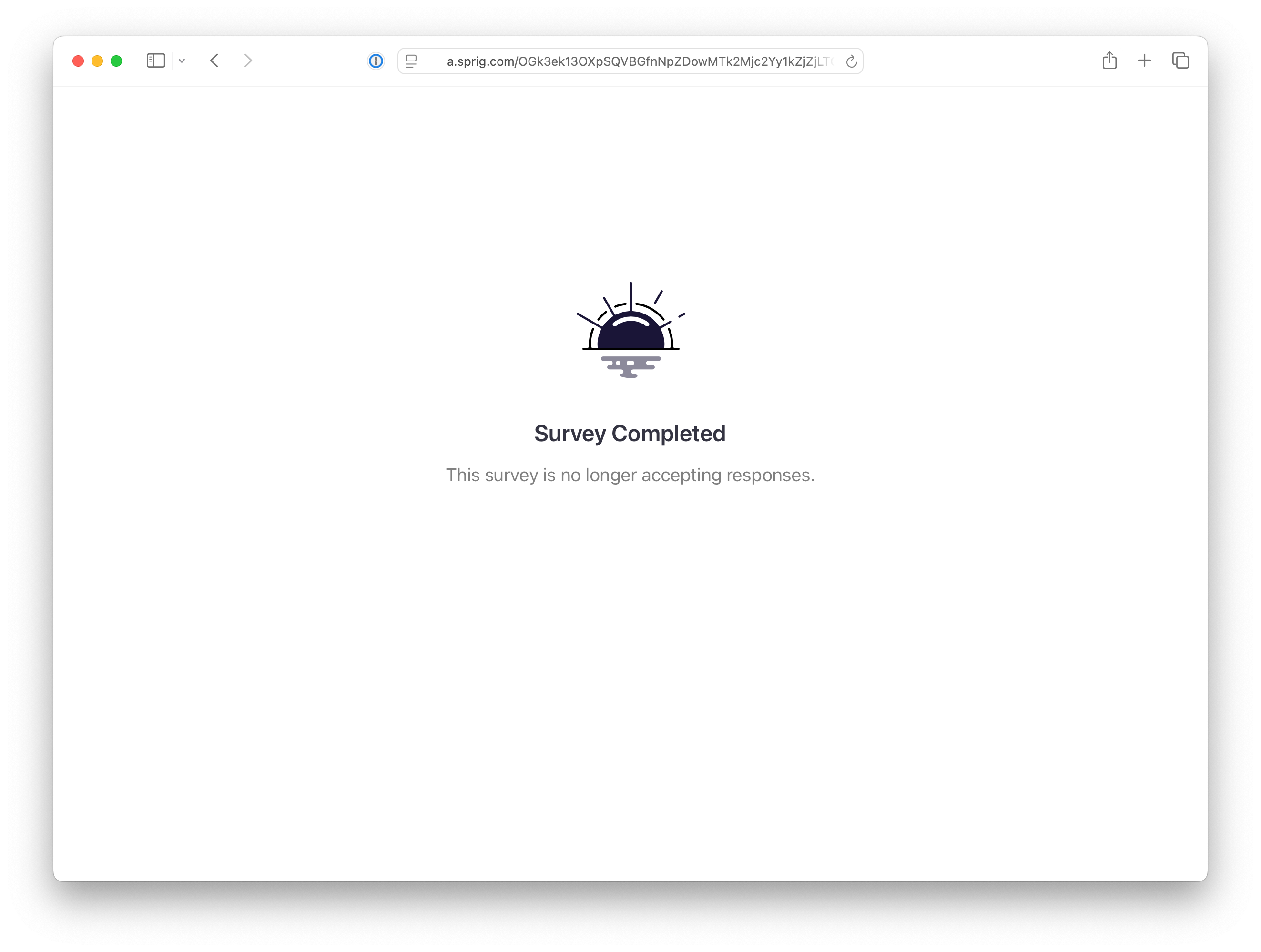
Using Quotas with Sprig Panels
Quotas can be used in a Survey that recruits participants through Sprig Panels to target people more precisely than the panel’s recruitment criteria allow. Quotas don’t limit who can see the Survey. Only the panel’s recruitment criteria determine who can find and start it, so everyone who matches those criteria will answer your screener questions. Quotas can also be used to exclude a group, since recruitment criteria can only include people. For example, to keep doctors out of a Survey, add the screener question “Are you a doctor?” and set the quota so only participants who answer No continue. When using quotas with a panel:- Every panel on a Survey with quotas needs screen-out slots. A panel can’t launch without them, and quotas can’t be enabled while a running panel has none.
- Place screener questions directly after the Consent / Legal question.
- Screen-out slots can be increased while the panel is running. If a panel uses all of its screen-out slots, it pauses and stays paused until more slots are added and the panel is resumed.
- Credits for unused slots are returned after the panel completes or is canceled and its last responses are settled, up to about 5 days after the last response.
- When every quota is full, the panel pauses instead of the Survey completing. The panel can only be resumed after a quota target is raised.
The Disqualification Message and Quota Filled Message are both set in the quota settings. See Set Up Response-based Quotas.
Reviewing Responses in a Survey that has Quotas
When reviewing responses collected in a Survey that has quotas, the responses will be grouped in several ways:- By quota - this will use the name of the quota, “Millennial Vegan Coffee Drinkers”
- A quota may have an Overflow group - this is where any respondents who matched the criteria but came in after the quota was filled will be shown (for example when multiple users submitted responses at once and the quota was nearly full). This group will also appear if you reduce a quota target for a quota that has already collected more responses than the new target allows.
- By Non-quota matches - these are respondents whose responses didn’t match any quotas.
FAQs
How many quotas can a Survey have?As many as needed, there is no limit. Is a Survey required to have a quota?
No, Surveys do not need quotas, how they run can be controlled with the standard overall response limit, by specifying an end date, or allowing it to run continuously. Why does my quota have more responses than I asked for?
If a quota is very close to filling, and several responses come in at the same time that qualify for that quota, they will all be added to that quota. What kind of response counts towards a quota?
Only respondents who finish the Survey will count towards a quota. If someone passes the screener questions but drops out of the Survey before completing it, their response won’t count towards any quota. There response will be counted in the overall total for the Survey and it’ll be visible in the full response list and through the normal export options.