

Getting Started
Overview
The Sprig Android SDK, when installed in your native Android app, allows you to track your customer’s in-product behavior and display Sprig studies when they perform certain actions.Requirements
- Join your teammates on Sprig (check with your Sprig admin whether organization discovery is on, or simply have a teammate invite you via your email address). This will give you access to your organization’s environment IDs, as well as the interactive Installation Guide.
- Ensure you have access to your Android codebase, and can deploy to a development and/or production environment
- The Sprig Android SDK is designed to work with Android SDK 21 (Android Lollipop, OS 5.0) and above. If using minSdk below 21, you can override the library in your main AndroidManifest:
Install SDK
Install via Gradle
You can install the Sprig SDK via maven central:- Kotlin (1.5.31)
- Gradle (7.2.0)
- Android X
- Material Components (1.5.0-alpha04) (used for bottom sheet dialog for surveys)
- ConstraintLayout (1.1.3) (used for flat view hierarchies for surveys)
Obtain an Environment ID
After you’ve installed, you must obtain an environment ID from Sprig. Sprig provides two environments, Development and Production, each with its own corresponding ENVIRONMENT_ID (which can be found in Integrations > Android SDK). The Development environment is recommended for initially setting up and verifying your installation. Then, you can use the Production environment to deploy studies to real users.Initialize the SDK
Initializing and using the SDK revolves around a singleton namedSprig. The singleton must be configured before it can be used; a common pattern is to configure Sprig in your class that extends Application, but follow the best practices for your team and application.
Make sure to check the OS system version before calling Sprig:
configure will only accept 1 environment ID, and calling it multiple times with different IDs will have no effect.
Study Previews
Identify Users
Identifying users ensures that a user’s actions are all associated with the same profile so they can be targeted. Properly identifying users helps ensure:- Your users have a consistent experience across platforms, and do not see the same study multiple times
- You can accurately target the right users
- You are billed for the correct number of Monthly Unique Users (MUUs)
Set User ID
Sprig allows you to differentiate users by setting a unique USER_ID. You may want to ensure consistency between the User IDs sent to Sprig and the ones in your internal database, product analytics/CDP, or data warehouse. You can also use an anonymizing function or hash. A good User ID is…- Unique: Two users should not share the same User ID.
- Mappable: User IDs sent to Sprig should map back to your internal User IDs, either directly or anonymously.
- Static: Once assigned, a User ID should not change.
setUserIdentifier to identify a user with any string less than 256 characters. This function can be called multiple times safely, and stores the identifier locally. We recommend you set the User ID whenever the user logs in to your app, as well as after configuring Sprig (if the user is already logged in).
Logout
When a user logs out of your app, make sure to log that user out of the Sprig SDK. This will prevent any new activity from being associated with the wrong user. Note that if you calllogout() on an unauthenticated user, Sprig will assign them a new profile and count this new user separately toward your MTU limit.
Track Events
Sprig uses events to trigger (display) studies after the user performs a specific action. They can also be used as a filter to target users who have previously performed an action. Once you’ve installed the Sprig SDK, the next step is to configure the tracking of events that you would like to use to trigger or filter a study. For mobile SDKs, you must configure Code events. (Sprig also offers No-Code events, but these are only available on web platforms.) To track a Code event, use:Track Attributes
Sprig allows you to track attributes, which can provide more context about the user to help you better understand their feedback. You can also use these attributes to filter your audience and target specific kinds of users. Some example attributes that can be tracked are:- Plan type
- Super users / power users
- Company
ATTRIBUTE_NAMEmust be a string less than 256 characters, and cannot start with an!(these names are reserved for use by Sprig)ATTRIBUTE_VALUEmust be a number, boolean, or string less than 256 characters
Set Email Address
Setting the user’s email address is optional. Setting emails is not required for web or mobile studies, but can be used to target users or create a Group of users based on their email. Check your organization’s guidelines around personally-identifiable information before sending email addresses to Sprig.Test & Deploy
To verify your SDK is configured properly, we recommend testing with your developmentENVIRONMENT_ID.
- Create a survey in your Sprig Development Environment
- Choose an approved event as a trigger for your study
- [For testing purposes only] Allow users to retake the survey and set the recontact waiting period to 0 days
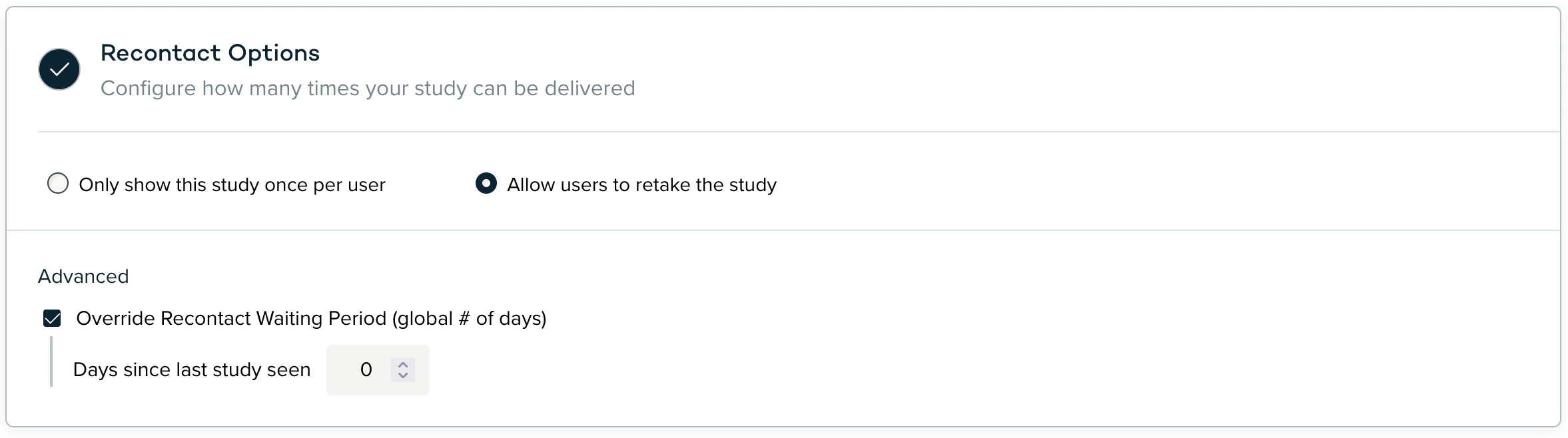
- Track the approved event from your app and confirm that the survey appears
Advanced Customization
Study Lifecycle Notifications
Sprig exposes updates throughout the study lifecycle. Here is a sample code block for listening to SDK events in real time:Set Locale
Sprig supports setting the locale for default caption and button text. The following locales are supported:- de
- en
- es-es
- fr
- hi
- ja
- ko
- pt-br
- ru
- zh
Setting the locale will only affect static text, and is only available for the iOS and Android SDKs (not React Native).