

Overview
Use Sprig MCP to build complete Studies directly from Claude, ChatGPT, or any connected AI client. Describe what you want to learn, and your AI client creates the Study in Sprig, then modifies it, translates it, and launches it when you say so. The full workflow runs from the conversation: individual Questions, display and skip logic, images and consent documents, translations, targeting, and invitation links.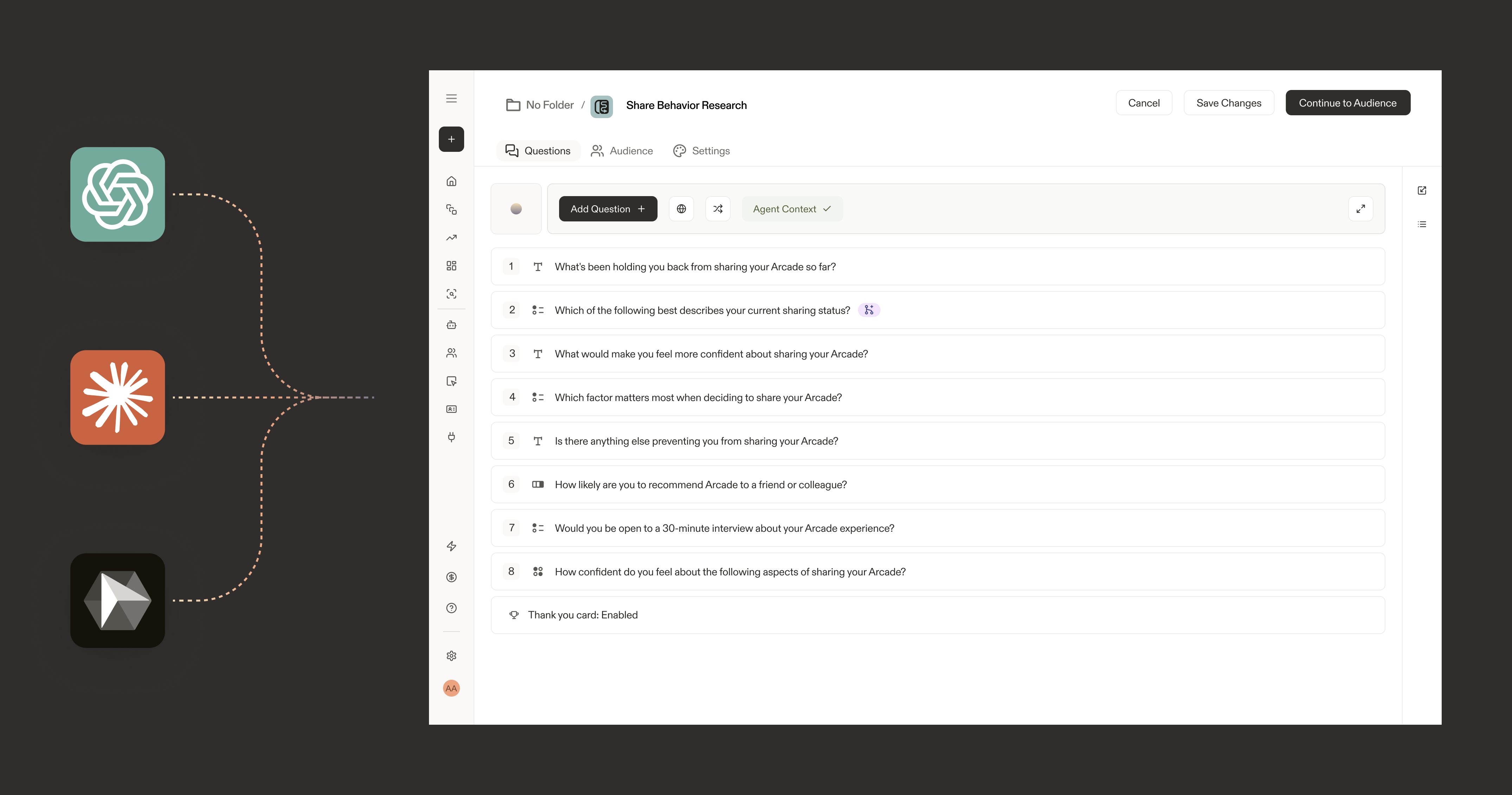
How it works
When Sprig MCP is connected, your AI client calls Sprig’s Study tools on your behalf. You describe your research goal in plain language. The AI drafts the Study in Sprig, and from there you keep working on the same Study: add or edit specific Questions, configure logic, start translations, and validate it for launch. You stay in control. A Study stays in draft until you explicitly tell your AI client to launch it, or launch it yourself from the Sprig UI. Every Study drafted through MCP carries an AI-generated watermark, and Sprig admins can disable MCP for the workspace at any time.Before you start
- Sprig MCP must be connected in your AI client. See Connect Sprig via MCP for setup instructions.
- You need Editor or Admin access in your Sprig workspace to create Studies.
- Studies created via MCP are saved as drafts. Nothing reaches a respondent until you launch it.
Create a Study
Step 1: Describe your research goal
Open your connected AI client and tell it what you want to learn. You do not need to write Questions yourself; describe the goal and let the AI handle the structure. Example prompts: Basic study“Create a Sprig study to understand why users are dropping off during onboarding. Use a 5-question format with a mix of rating scales and open text.”NPS study
“Create an NPS study in Sprig for users who completed their first purchase. Include the standard NPS question and a follow-up asking for the reason behind the score. Route anyone who scores 6 or below to the reason question.”Feature feedback
“Create a Sprig study to collect feedback on our new dashboard redesign. Attach the redesign screenshot to the first question.”Post-cancellation
“Create a short exit survey in Sprig for users who just cancelled their subscription. Keep it under three questions and focus on the primary reason for leaving.”
Step 2: Refine the Study from the same conversation
The draft stays editable from your AI client, so iterate on the same Study instead of starting over:“Change Question 2 to a 5-point rating scale.”
“Add skip logic so respondents who pick Less than 15 minutes go to the end of the survey.”
“Show this survey to users who trigger the checkout_abandoned event, with a 10 second delay.”
“Delete the last question.”
“Translate this study into Spanish. Fill in only the missing text.”
“Create 500 invitation codes so I can share this by link.”Your AI client can also read the Study back to you, so you can review the full draft without leaving the conversation.
Step 3: Validate and launch
Ask your AI client to validate the Study. Validation lists exactly what blocks launch, such as a missing event trigger for an In-Product Survey, and the AI can fix what is fixable from the conversation, including setting the event trigger and audience.“Validate this study and list anything blocking launch. Keep it in draft for my review.”When you are ready, launch it from the conversation or from Sprig:
- Tell your AI client to launch the Study, or go to Sprig → Studies, open the draft, and click Launch.
- To make changes after launch, pause the Study, edit it, and resume it, all from the conversation.
A Study never launches on its own. Launching requires your explicit instruction in the conversation or your action in the Sprig UI.
Prompt tips
- Be specific about your audience The more context you give, the better the Study. Include user segment, product area, and any behavioral context (e.g. “users who signed up in the last 7 days”). For In-Product Surveys, name the trigger event and audience in your prompt; the AI lists your Events and sets the targeting, or you can configure it in the Sprig study editor.
- Name the study type If you have a specific format in mind: NPS, CSAT, usability, feature feedback. The AI will apply the right structure automatically.
- Set a question limit Shorter studies get higher completion rates. Ask for a maximum number of questions upfront: “Keep it to five questions or fewer.”
- Ask for a bias check Before launching, ask your AI client to audit the draft: “Review this study for leading questions, double-barreled questions, and missing answer options.”
What gets created
When your AI client creates a Study via MCP, the following are set from your prompt:
Targeting can also be configured in the Sprig study editor at any time.
Frequently asked questions
- Can my AI client launch a Study without me reviewing it? No. A Study stays in draft until you explicitly instruct your AI client to launch it or launch it from the Sprig UI. Validation shows what blocks launch before you do.
- Can I modify a Study after creating it? Yes. Ask your AI client to add, edit, reorder logic on, or delete specific Questions, update settings, or translate the Study. You keep working on the same Study as requirements change.
- Can I create Studies in bulk? No. It is one at a time for now.
- What Question types are supported? 11 types: Open Text, Single Select, Multiple Select, Rating Scale, NPS, Validated Text, Rank Order, Matrix, Text / URL Prompt, Consent / Legal, and AI Dynamic.
- Can I use a template? No. Studies are built from the prompt you enter in the AI client.
- Who can see drafts created via MCP? All workspace members with access to your Sprig workspace can see the drafts created via MCP.
- Will I know a Study was created with MCP? Yes. Every Study drafted through MCP carries an AI-generated watermark in Sprig.
Troubleshooting
- Study did not appear in Sprig Check that Sprig MCP is connected and authorized in your AI client, and that you are looking in the environment the AI used. Ask your AI client which environment it created the Study in.
- New tools not available (modify, translate, launch) Connections made before the expansion only see the original tools. Disconnect and reconnect Sprig in your AI client to reauthenticate.
- AI created the Study but questions look off Ask your AI client to revise the specific Questions, or open the draft in Sprig and edit directly.
- Permission denied when creating a Study You need Editor or Admin access in Sprig to create Studies via MCP. Ask your workspace admin to update your role.
Need help? Contact support@sprig.com or see Connect Sprig via MCP.